I haven’t written a how-to in a while, and so here is one just for you, all the people I love.
It’s only been a year since I started blogging, and it took me a while to learn the ropes. This article explains the simplest way to upload buttons to your blog. This is how I do it, and since I’m uber lazy, you know it’ll be the easiest way. So:
STEP #1: PHOTOBUCKET
Go over to Photobucket and make an account. Just a tip, choose a secure password, staying clear of obvies like iamcool, iamsupercool and desemapics.
STEP #2: FIND A BUTTON
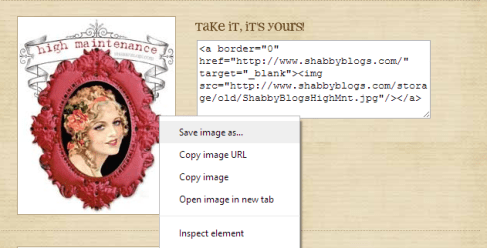
There are some sites like I love the way she blogs and Shabby Blogs that offer free buttons and blinkies for blogs. There are two ways to do this. One is to just copy the html code and paste it into the Widgets section in WordPress, but that will end up linking you back to the host blog. Two, the option I use is to right click on the image, and save it. I’ll use an example button:
STEP #3: UPLOAD TO PHOTOBUCKET
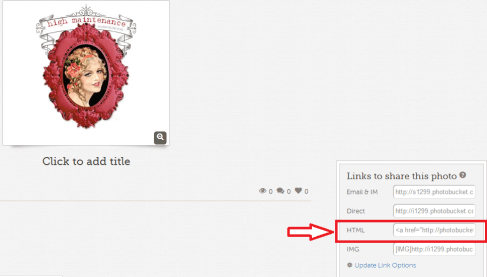
Sorry if this is going painfully slow, but trust me, it’ll be worth it in the end. Anyway, now just open Photobucket and upload your button there. Once it’s uploaded, open the picture and copy the html code in the sidebar:
STEP #4: OPEN NOTEPAD
This is simple. Just open WIndows Notepad and copy the link into it:
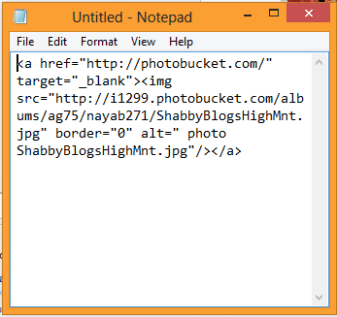 Select the text in the first line, everything that comes after href=” and before “target=:
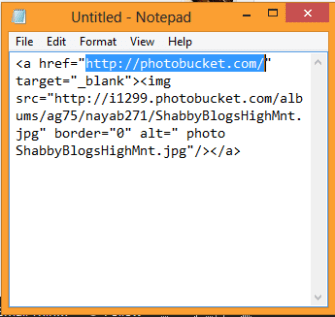 Replace this with the address of your website, or of any page you want to link it to; it should look like this:
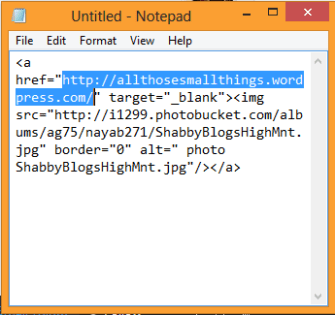
Once this is copied, you’ve completed your “html code”, ha.
STEP #5: WORDPRESS
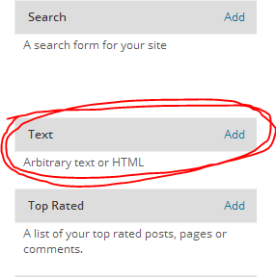
Open up your blog on WordPress, and go to Widgets. Here, click add under Text:
Simple copy the code you’ve written in Notepad and paste it into the text section for the widget:
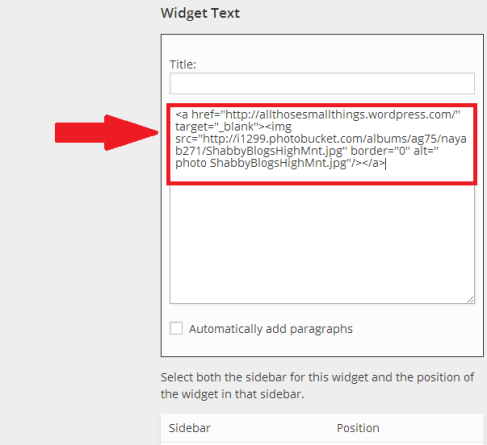 Select its postion on the sidebar, or footer (whatever inspires you), and click Save Widget. Visit your blog and check out your awesome button!

So, that’s it. The simplest way to upload a working button to your WordPress site. Cheers!


 Nayab Malik
Comment If You Like Cookies :D